HVS32 Update with Firebird 5 Update ENG
This is a guide for updating HVS32 including the Firebird 5 update.

| INFO: This update only works for Firebird 5. If you want to upgrade from e.g. Firebird 2.5, please contact support.
You can read the current version in the lower status bar of the HVS32 window (see image on the right). |
Table of Contents
HVS32 Update - Preparation
Before starting the update, perform these steps:
- Ensure that no shipping is running and all HVS32 shipping stations are closed.
- Stop all HVS32Monitoring services, if in use.
- Stop the Firebird Server service (service names: "FirebirdServer" or "Firebird Server - DefaultInstance").
- Check via Windows Computer Management -> Shared Folders -> Open Files if any HVS32 share files are open, and close them if necessary.
- Ensure that no HVS32.exe is in use.
- Perform the update on the HVS32 server (or single-user installation).
- Create a backup of the HVS32 folder if no current backup exists (only when no station is running).
| CAUTION: If nbackup is running, do not stop the server during a backup - otherwise the database will remain in backup mode. |
Link to Current Version
You can obtain the link to the latest HVS32 version with Firebird 5 integration upon request from our support. With an active maintenance contract, you will receive the updates free of charge.
Procedure
- Download the new HVS32Setup.exe (request link from support).
Execute it with right-click -> "Run as administrator". - Select "Update to version..." and "Firebird Database Server" in the setup routine.
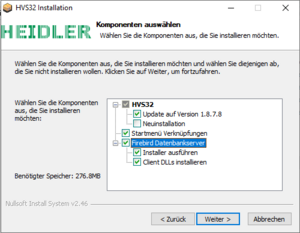
Verify that the correct HVS32 installation path is selected (e.g. C:\Heidler\HVS32).
If not, run the installer again and select "New Installation" to set the path manually.


| CAUTION: The routine might add an extra subdirectory "HVS32" (e.g. C:\Heidler\HVS32\HVS32) - remove this from the path specification if necessary. |
| INFO: If you need to update more than one HVS32 installation, it is sufficient to select only "Install Client DLLs" for subsequent installations. The Firebird installer only needs to be run once. |
- The Firebird Wrapper starts automatically:
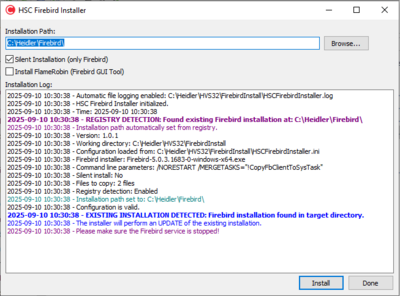
Check the path and adjust it if necessary.
After successful installation, you can continue with "Done". - Restart the Firebird services after installation.
- Start HVS32 for the first time (as administrator) on the server.
Confirm any messages (e.g. "...xx switches have been added...").
Wait for the automatic database update. - Start all HVS32Monitoring services, if in use.
- Update completed: You can continue shipping.

Possible Errors
If a message "There are 2 users connected to the database.." appears at the first start after the update and the program then closes again, either a shipping station is still open or an active Firebird server process is active, which maintains a database connection.
In this case, the Firebird service should be restarted and then HVS32 should be started again.
If the message continues to appear or a full database restructuring starts, please cancel the running process and contact Heidler support.
If you perform the update outside of support hours and a full restructuring has started, it can also be waited out.
Please note that this process can take some time depending on the database size.